
Note: Social media changes quickly, and this blog reflects information we know about the limits on Facebook Page links in October 2026. Meta is still rolling this out inconsistently, so you may or may not see these limits on the Pages you manage, yet.
If you’re like most school social media managers, you’ve probably had a moment of panic trying to publish a Facebook post with a link recently.
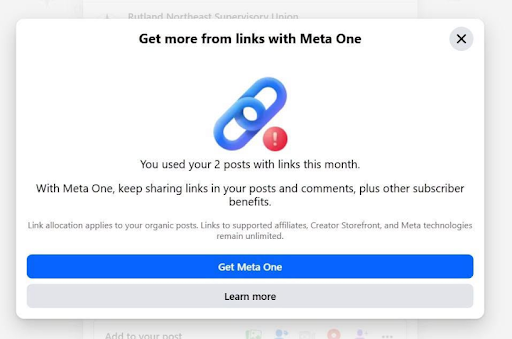
“You’ve used your two posts with links this month.”
WHAT?!
We’ve relied on social media as a cornerstone of school communications for years… and now Meta wants us to pay for something we’ve been doing forever?
Awesome. Thanks, Meta.
From Meta’s perspective, though, sending people off its platform isn’t exactly good business. The longer people stay on Facebook, the more opportunity Meta has to make money. That’s one reason posts with links have generally struggled with organic reach for years. Meta wants people staying on Facebook – not clicking over to your school website, a news article, registration form, livestream, or anywhere else.
And now Meta is taking that a step further. Some Facebook Pages are being limited to just two organic posts or comments containing external links per month unless they pay for Meta One.
Now you might be reading this in complete confusion, because you haven’t seen this on the page(s) you manage… yet.
Meta is rolling this out slowly. Some page managers have seen this on desktop but not on mobile, etc. Even if you haven’t hit a roadblock quite yet, you’re likely going to see it soon and will need to adjust your strategy.
And plus, Meta may reverse course on this policy if it gets enough negative feedback. I’ve seen reports of an exemption in place for news outlets, for example. What happens if enough of us push back and complain to Meta? Could the company create a workaround for schools, too?!
But for now, this is our new reality, and we need to do what school communicators do best: adapt!
Can You Still Put Links in Facebook Comments?
Yes… but after your Page hits its limit, that external link may no longer be clickable.
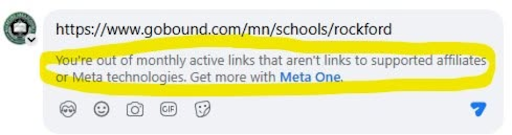
People could technically copy the URL and paste it into their browser. But let’s be realistic. We already know how hard it can be to get someone to click something. Asking them to highlight a URL, copy it, open their browser, paste it, and hit enter creates way too much friction.
Possible Exceptions
- If you’re trying to send people to another Facebook page or post (perhaps you have a separate page for athletics, for example), you can still tag Facebook pages on your posts or in your comments. Those tags are still hyperlinked and clickable.
- At the time of writing this guide, email addresses aren’t flagged as links either, if your call-to-action is to email someone.
- Facebook expert Mari Smith reports that you can provide working links to your own Reels or posts on Instagram, Facebook, and Threads, including Facebook Group links and Facebook Event links.
But what about all the website links and registration forms you want to use? Those will no longer be clickable after you reach your 2-link limit. And paying Meta for more external links isn’t exactly cheap!
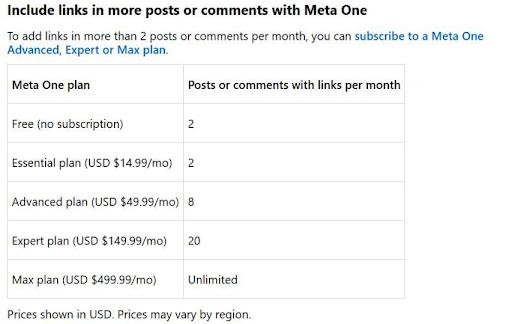
At the time I’m writing this, Meta One plans that include additional Facebook links range from roughly $50/month for eight links to $500/month for unlimited links. I don’t know about your school budget, but I’m guessing there isn’t an extra $6,000 sitting around for Facebook links.
Before you go breathing into a paper bag in a complete panic, I want you to know this article has good news: I don’t think you have to pay!
I’ve been testing and researching the options, and instead of giving you 15 different “hacks,” I want to focus on the 100% free strategies I actually think make sense for schools. In particular, there are two workarounds that rise to the top. Keep reading for my suggested solutions!
Workaround #1: Use a Comment-to-DM Automation
This one is pretty slick. You can create a free direct message automation right inside Meta Business Suite. You pick a keyword, include it in your post, and Facebook does the rest.
For example:
“Want the fall sports calendar? Comment SPORTY below, and we’ll send it straight to your Facebook inbox!”
When someone comments that keyword, they automatically receive a private message that you customize, and that message can contain your external link. No link is needed in the actual Facebook post, and as a bonus, you’re getting engagement on your post, too.
This even works if you don’t normally have direct messaging turned on for your school’s Facebook Page. Watch my video tutorial on how to set it up right here.
How to Set Up Meta’s DM Automation
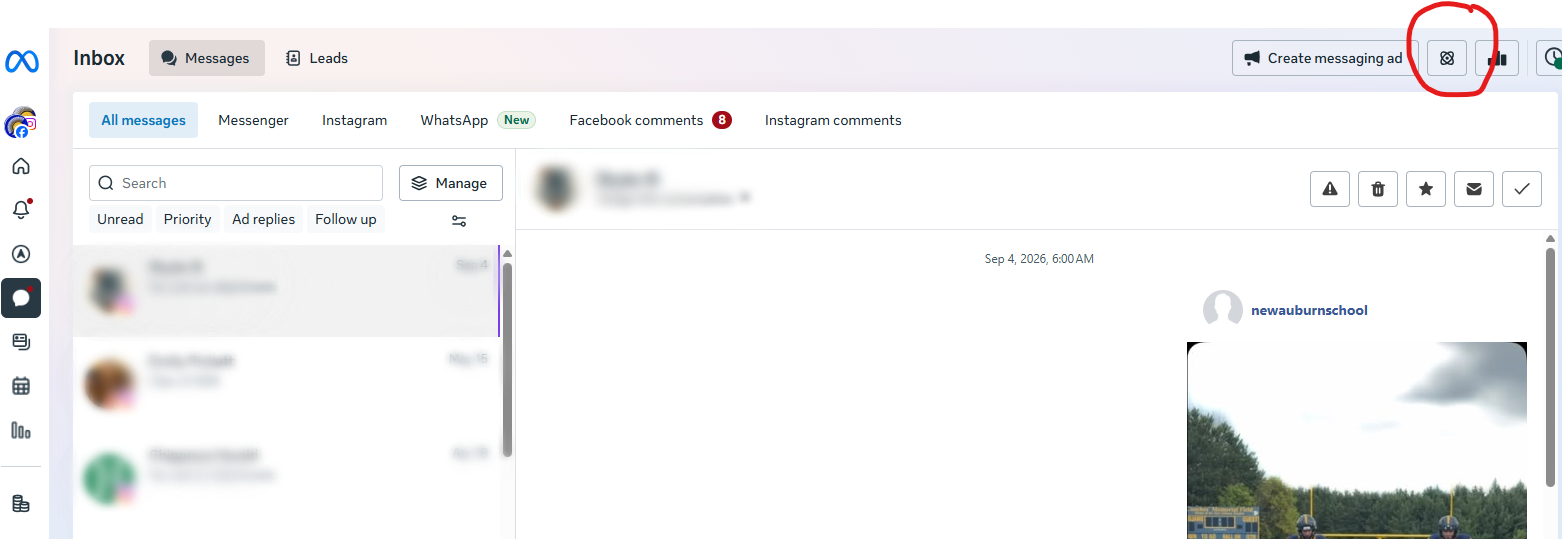
- Open Meta Business Suite and go to your Inbox.
- Select the automation symbol.
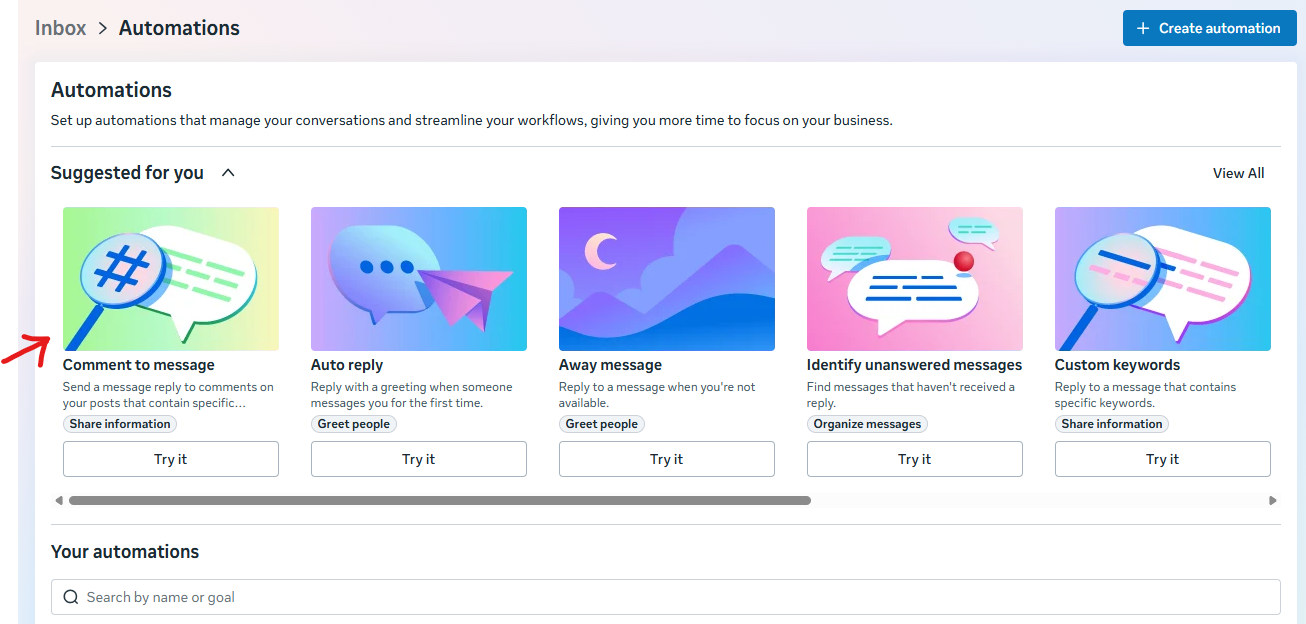
- Choose “Comment to Message.” If you don’t see it suggested, click “View All” to find it.
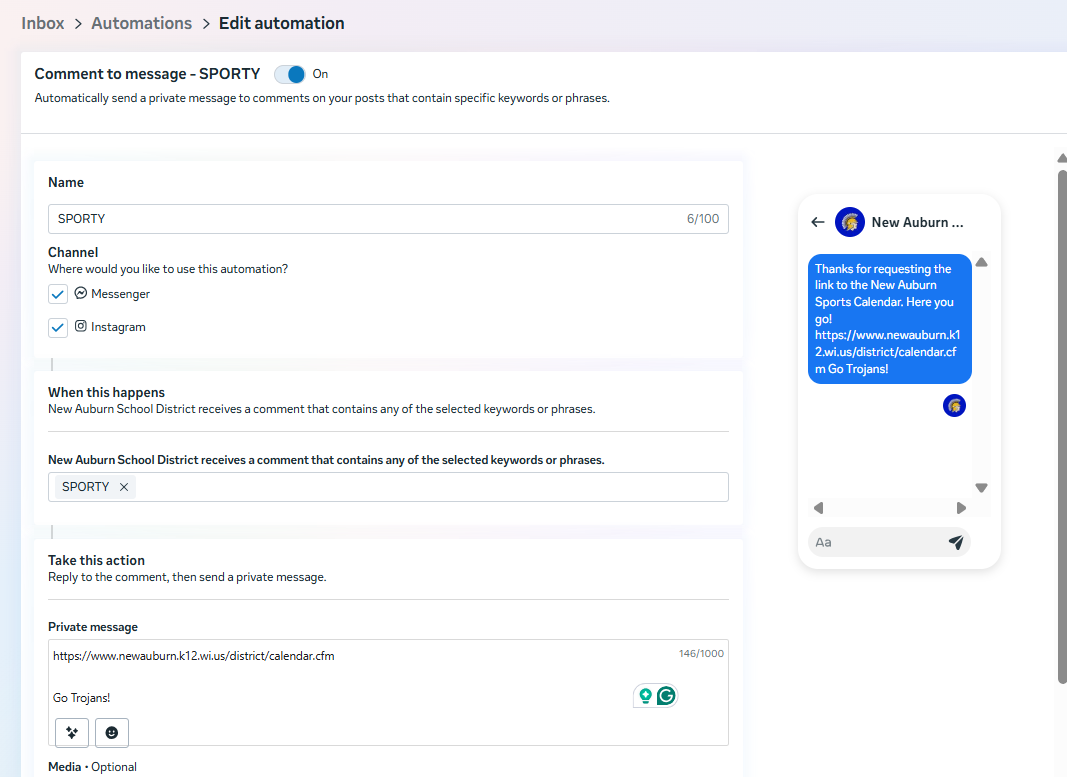
Then fill out the automation details:
- Give your automation a name.
- Choose whether you want it to work on Messenger, Instagram, or both.
- Add your keyword.
- Write the private message people will receive. This is where you include your website, Google Doc, registration form, livestream, or whatever link they need.
- Add an automated public comment reply, too. Something simple like: “Just sent you the link!”
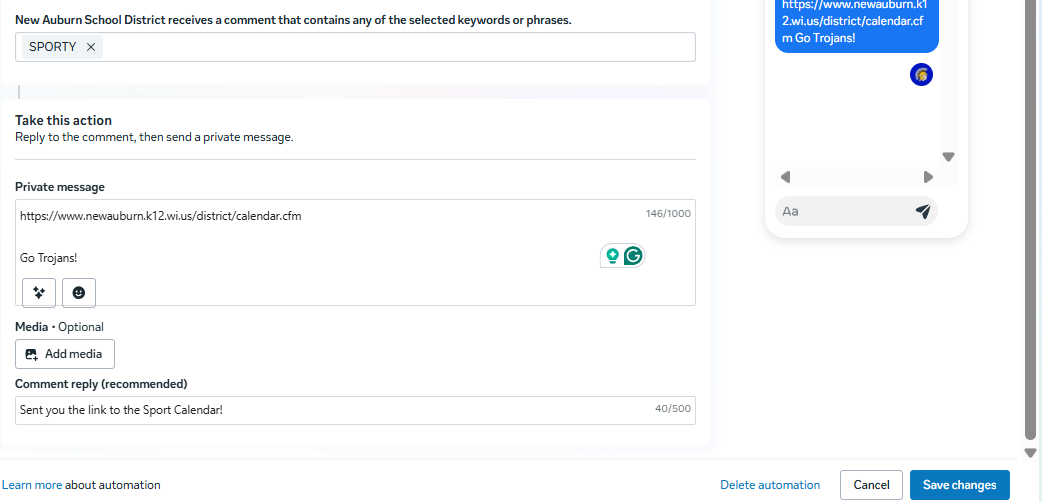
Click “Save Changes.” That’s it!
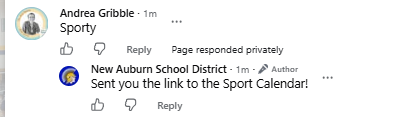
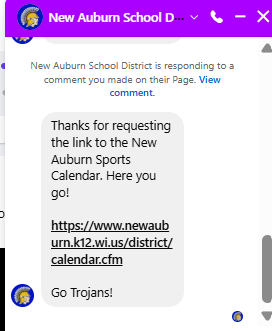
I tested this myself on New Auburn’s Facebook Page. I typed “sporty” in the comments, and almost immediately I received the direct message with the link I wanted.
Important Tips for DM Automations
Let’s go over some tips for choosing the best possible keyword! I want to give you all the information you need, so you understand exactly how the automation will (and won’t) work.
Tip #1: Choose a Unique, 1-Word Keyword
This is one area where I changed my advice after testing it myself. At first, I thought a compound keyword was best because I wanted something really unique. But then I watched people naturally add a space. “SPORTCAL” became “SPORT CAL,” and then the automation didn’t work.
So now I recommend choosing a keyword that is naturally one word, easy to spell, easy to remember, unlikely to randomly appear in another comment, and connected enough to the call-to-action that it makes sense.
For example:
SPORTY = athletic calendar
TASTY = school lunch menu
SCHOLAR = scholarship information
DIGEST = newsletter
PENCIL = school supply list
SUNNY = summer programming
Notice I’m not recommending words like LINK, SPORTS, JOBS, MENU, or CALENDAR. Those words are simply too common.
The keyword doesn’t have to perfectly describe what you’re sending. Your caption does the heavy lifting.
Tip #2: The Keyword Doesn’t Have to Stand Alone
In order for the automation to work, the keyword does not have to be the only thing in the comment. If your keyword is SPORTY, someone could comment “SPORTY,” “Send me the SPORTY link!” or “SPORTY please!” and the automation should still trigger.
Tip #3: Capitalization Doesn’t Matter
The automation above will still work if someone comments “sporty” or “Sporty.” Capitalization doesn’t matter.
Tip #4: Keywords Can Trigger on Any Post
Once your automation is active, the keyword can trigger on any post on your Page, not just the post you intend. If somebody comments, “I love watching Trojan sports!” six weeks from now on a different post, you don’t want Facebook randomly sending them an outdated athletic calendar, which is why the keyword “Sports” is too generic.
Tip #5: You Can Run Multiple Automations
Need to share three different links this week? You can create three different automations with three different keywords. Just make sure you’re keeping track of what is active so an old keyword doesn’t keep sending outdated information.
Tip #6: Your Page Won’t be Inundated with DMs
What if someone replies to the DM your page auto-sent? For my school PR friends who are thinking, “Please do not give me another inbox to manage…” don’t worry! If your Page normally has messaging turned off, your automation still works. Users will get the DM they asked for, but if they try to continue the conversation, they won’t be able to reply.
Workaround #2: Create ONE Pinned Post That Becomes Your Link Hub
For everyday school communication, this is probably my favorite solution.
All you have to do is create one evergreen Facebook post that says something like, “Looking for a link we recently shared? Start here!” Then include one link to a Linktree, your school website, or another simple landing page where you can keep all of your frequently changing links.
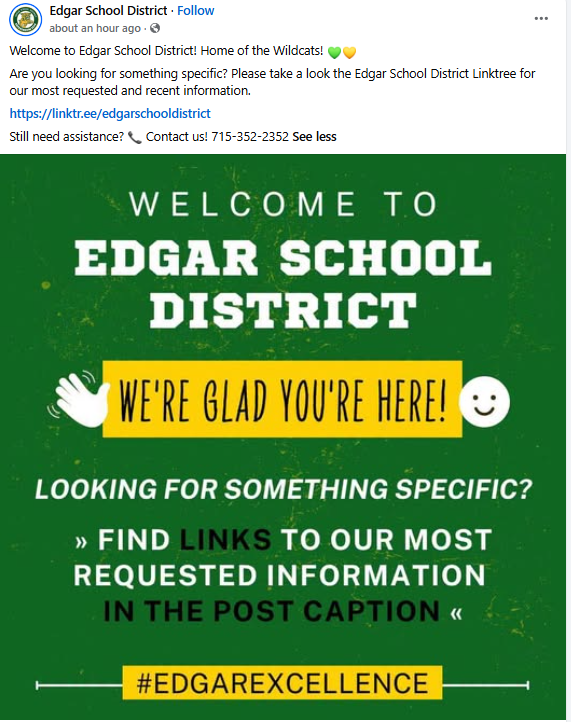
Publish that Facebook post and pin it to the Featured section of your Facebook page. And yes, this will count as one of your two available links during the month you publish it.
But then you’re done.
From that point forward, you don’t have to keep changing the Facebook post. You change what’s on the Linktree or website page instead. That’s the magic!
Step 1: Create Your Pinned Post
One easy option is to create a free Linktree account for your school. The free version allows you to create one simple page with multiple links that you can add, remove, and update whenever you need to.
Today, your Linktree might include your athletic livestream, parent-teacher conference sign-up, school lunch menu, fall concert tickets, and employment openings. Next week, you could remove links that are no longer relevant and add information about picture retakes, winter sports registration, and Veterans Day program details.
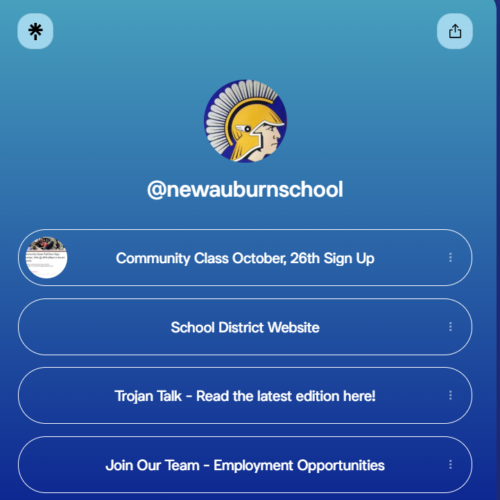
Your pinned Facebook post hasn’t changed at all. The URL in that post stays exactly the same, and you’re simply changing the links people find when they get there.
My friend Chad Kafka from Franklin Public Schools is already using a Linktree to give his community one simple destination for school links.
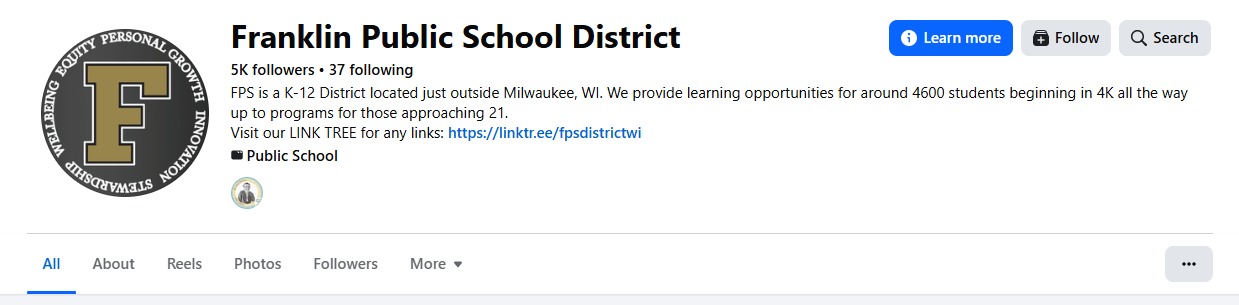
Chad has his Linktree in the Page bio, which is another great place to put it.
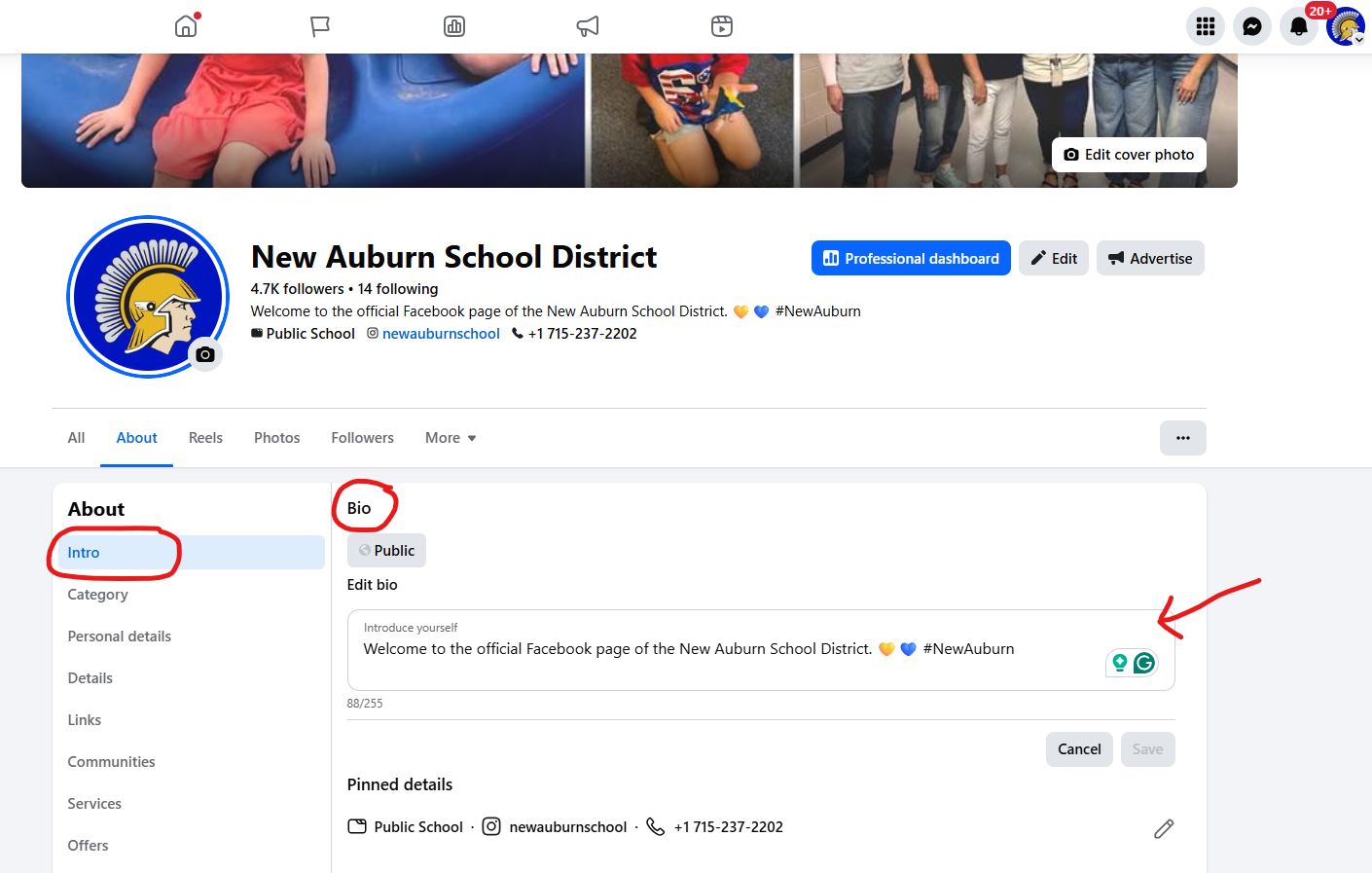
Of course, you don’t need Linktree at all if your school website is easy to update. In fact, this might be an even better long-term solution because your website is something your school owns. You could create a really simple page such as:
www.myschool.org/links
That page doesn’t need to be fancy. It could simply say “Current Links” and list whatever your families need right now. When something is no longer relevant, remove it. When you have a new link to share, add it.
My friend Joelle Doye at Mineral Point Schools took this approach and even explained the change directly to her followers:
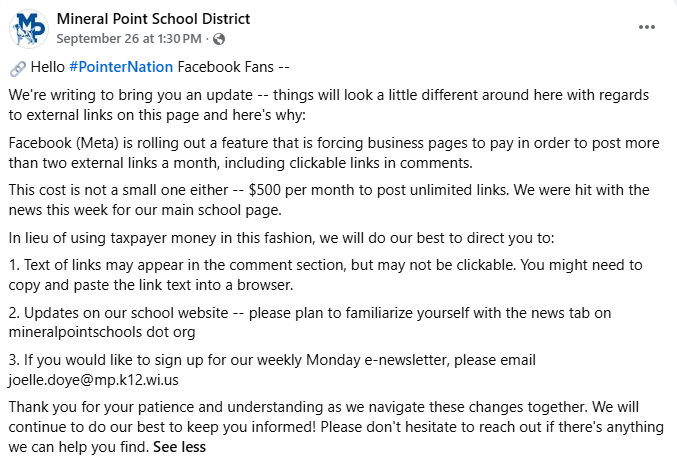
She created a section on the district website where families could consistently find the links they needed.
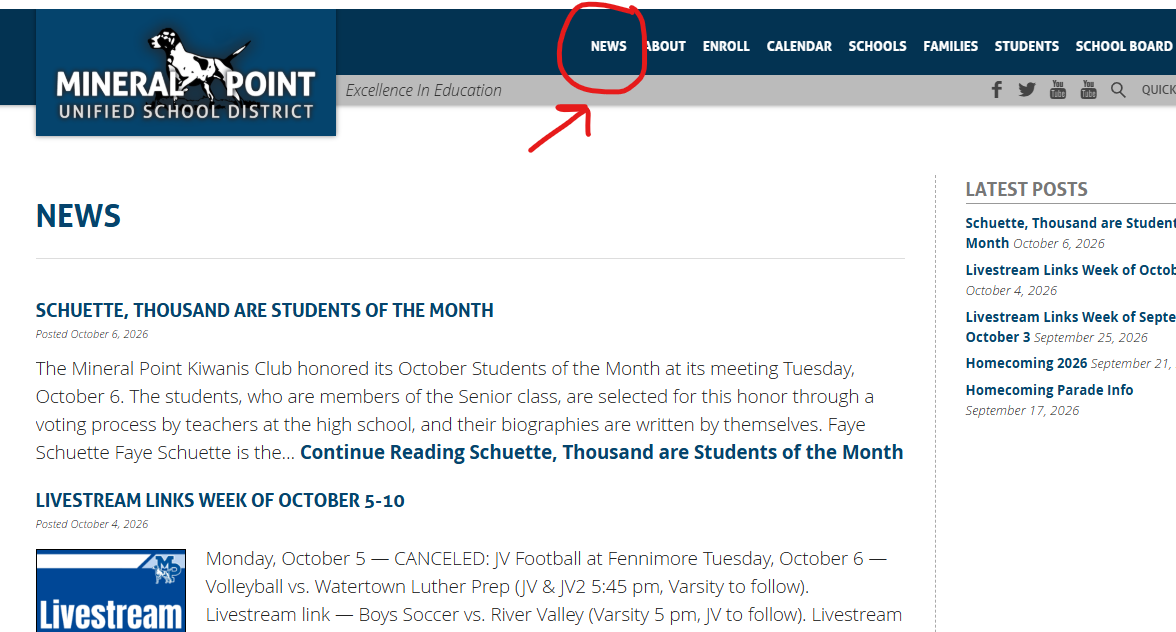
I love this because your website and email list are channels you own. Facebook isn’t. I’ve personally experienced Facebook Pages getting shut down or suspended, and it is not fun.
Social media is borrowed land. We absolutely want to show up there because that’s where our families and community are, but we shouldn’t build our entire communication system on something we don’t control.
Whether you use a free Linktree or a page on your school website, the strategy is exactly the same: Create ONE destination for your current links and keep that page updated.
Then we take it one step further when creating new social media posts for Facebook.
Step 2: Link Back to the Pinned Facebook Post
Remember that really important exception to Meta’s new restriction? Links that keep people within Facebook do not count as external links!
So instead of writing:
“Register for parent-teacher conferences here: [EXTERNAL LINK]”
You could write:
“Parent-teacher conference registration is open! Find the registration link in our Current Links post: [LINK TO YOUR PINNED FACEBOOK POST]”
That link simply sends people to another Facebook post, and that Facebook post contains your Linktree or school website link.
So the user journey looks like this:
New Facebook post → Pinned Facebook post → Current Links page → The link they need
Yes, that’s one extra click. But once you’ve set it up, you can use this system over and over again, without burning through your external link allowance. Unlike DM automations, you don’t have to set up a new keyword every time. That’s why I think this might be the easiest long-term solution for schools.
Simple Steps for Executing This Strategy
- Create your free Linktree or a simple “Current Links” page on your school website.
- Create one evergreen Facebook post explaining that this is where followers can always find current school links. Include your Linktree or school website link in that post.
- Pin the post to the Featured section of your Facebook Page.
- Copy the Facebook URL for that pinned post, and save it where your communications team can easily find it.
- Whenever you need to share an external link, update your Linktree or Current Links page to include it.
- In your new Facebook post, direct followers to the pinned Facebook post. Meta doesn’t count this as one of your two links per month.
That’s it!
Which Workaround Should You Use?
You don’t have to pick only one. These two strategies serve slightly different purposes and can work together. Just pick the tool that makes sense for the goal.
For your routine school links, I would use the pinned-post system. This is perfect for everything you constantly need to share, like menus, calendars, registration forms, livestreams, newsletters, and job openings. Just make sure you keep your Linktree or Current Links page up to date.
For a really important call-to-action, I love the DM automation. If you’re trying to drive registrations for kindergarten enrollment, get people to sign up for a big event, or promote something where engagement really matters, saying “Comment ENROLL, and we’ll send you the registration link!” is much more engaging than “Go find our link post.”
One more idea: Save your two actual external Facebook link posts each month for the things that really deserve them. Don’t burn one on Tuesday’s lunch menu if you know you’re launching kindergarten registration on Friday!
One More Option: Facebook Events
There is one additional workaround worth keeping in your back pocket. If what you’re sharing truly is an event, create a Facebook Event for it.
Facebook Events can include external links, making them especially useful for athletic livestreams, community forums, school board meetings, concerts, registration events, and fundraisers. You can create the Event, add the external link where appropriate, and then direct followers to that Facebook Event from your regular feed posts.
Again, you’re keeping the person inside Facebook first. Just make sure you use Events when they actually make sense. I wouldn’t turn the Tuesday lunch menu into a Facebook Event just to sneak a link onto the platform. Let’s not get weird!
What About Stories and Third-Party Scheduling Tools?
Several other workarounds are working right now. Facebook expert Mari Smith reports that external links in Facebook Stories are still working outside of this limit, and some school communicators are seeing links continue to publish through third-party tools like Class Intercom and Apptegy.
Those may absolutely be worth testing on your Page, but I wouldn’t build my entire strategy around a loophole Meta could close tomorrow. That’s why I keep coming back to these two:
- Comment-to-DM automation
2. One pinned Facebook post leading to a constantly updated link hub
They’re simple, they’re free, and most importantly for schools, they’re manageable.
Don’t Let This Stop Your Storytelling!
Before this Meta change makes you want to throw your laptop across your office, remember that most of what you’re sharing on social media shouldn’t require a link, anyway.
Your best content is still your students, staff, celebrations, and behind-the-scenes moments. Those are the stories that stop the scroll and remind your community why your school matters.
Meta can change link limits and algorithms. Meta can launch another $500-a-month subscription tomorrow – I wouldn’t even be shocked.
But Meta can’t stop you from telling great stories.
So set up your workaround, save your external links for when you really need them, and get back to celebrating your school. You’ve got this!