Accessibility is top-of-mind for schools right now – and for good reason!
As deadlines to meet WCAG 2.1 AA requirements get closer, many public school communicators are feeling the pressure. There is a lot to learn and update, and for many schools, it can feel downright overwhelming.
The good news? You don’t have to figure it all out at once! But you do need to start taking action.
I can’t remove all the stress with one blog post, but I can help you tackle one very important area: Social media. If you manage your school’s accounts – or have staff across your district posting on behalf of schools, teams, clubs, or programs – this matters to you.
Why? Because ignoring the rules could put your school at risk for an OCR complaint.
Have you read my blog that explains the new regulations? If not, start here to get a digestible rundown of the accessibility rules.
Then, in this article, you’ll discover a series of quick video tips that show you exactly how to make your social media more accessible and aligned with standards. This isn’t just the “what” – this is the “how”!
 And to empower you to share these tips across your school district, I’ve also created a handy PDF that includes all of them in one place. We will update the linked content regularly, so even if the social media platforms change, this handout will take your colleagues to the most up-to-date, accurate information.
Make sure you download this for yourself, right now, and plan to send this download to your teams. Anyone who runs a classroom or extracurricular social media account needs to comply with the new requirements. The time to start is now!
Demo: What Screen Readers Sound Like
Before digging into each tip, I wanted to share a brief video that shows what it’s like for a person using assistive technologies. This will give you a baseline understanding of why the alt text accessibility requirement is so important. This video demonstrates NVDA, a free screen reader you can install on your computer.
When you include proper alt text, NVDA can interpret the images and describe them to the user. But if you don’t fill in alt text or assume AI will correctly interpret the image, you will miss the opportunity to connect with that person.
How to Write Good Alt Text for Images
Now that you know why alt text is important, how do you actually write it?
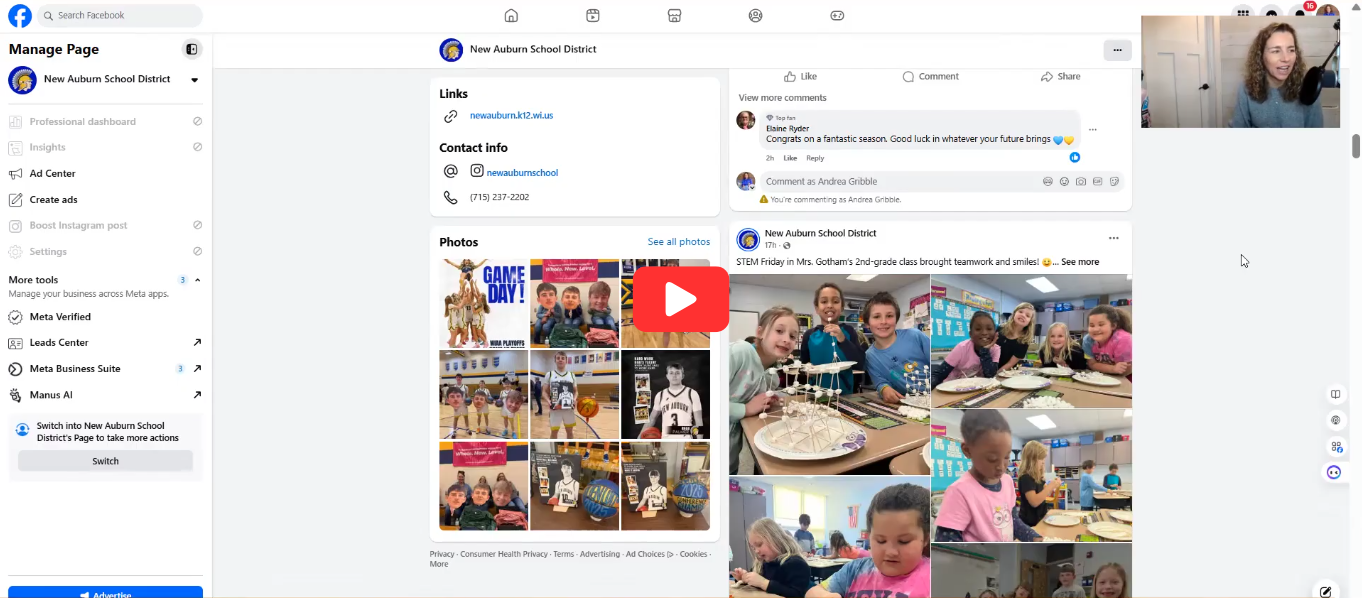
As this video demonstrates, it’s pretty simple! Think about what someone would miss if they couldn’t see the photo. Now, that’s what you need to describe.
Remember, without alt text, some users will miss critical information. And your content will not comply with accessibility standards! This video explains how to write alt text, and the following tips will show you how to add it to Facebook, Instagram, Twitter/X, and LinkedIn.
How to Add Alternative Text to Facebook Images
Now it’s time to learn exactly how to add alt text to your Facebook images. This video demonstrates how to do it from both mobile and desktop. Taking these few extra steps ensures everyone can access your school’s content!
Make sure that all your building-specific (or classroom-specific) Facebook page admins are aware of these new standards and directions, too.
How to Add Alternative Text to Instagram Images
Ready to make your Instagram posts accessible? This video shows you how to add alt text to Instagram images on both mobile and desktop.
Adding alt text to Instagram is a critical part of making your school’s social media accessible to everyone in your community! Make sure anyone else who runs a school-affiliated social media account in your district is following these directions, too.
How to Add Alt Text to LinkedIn Images
If your school is active on LinkedIn, watch this video! It shows the simple steps for adding alt text to your LinkedIn images, from both mobile and desktop. Making your LinkedIn content accessible is especially important as more schools use this platform for staff recruitment and community engagement.
Pro Tip: Send this video to your HR team if they’re using LinkedIn on behalf of your school.
How to Add Alt Text to X (Twitter) Images
You guessed it: Twitter/X is next!
This video demonstrates how to add alt text to Twitter/X images on both mobile and desktop. While many schools have moved away from this platform, if you (or anyone running school-affiliated accounts) are still actively using it, making your content accessible is a must!
How to Add Closed Captions on Instagram Reels
Let’s move on to video content. Your Instagram Reels need to be accessible, too!
This video shows how easy it is to add and edit auto-generated captions. You’ll learn how to customize the style, placement, and accuracy of your captions to ensure all viewers can engage with your content.
Remember, closed captions aren’t just for accessibility compliance – they also help engage viewers who watch with the sound off!!
How to Make a Video – Without Talking – Accessible
Are you off the hook if your social media video doesn’t include talking?
Nope!
Even if your video content just consists of music and visuals, you need to take steps to ensure it meets accessibility requirements. This video explains how to describe what’s happening in your post caption. You’ll see examples of how to clearly describe the action, whether it’s students cheering at a pep rally or athletes scoring the winning shot.
How to Make Instagram and Facebook Stories Accessible
Stories are a key part of school social media – and everyone in your community should be able to understand their content!
Because Facebook and Instagram Stories don’t have built-in alt text options, this video shows a simple workaround. All you need to do is add text directly onto each Story that describes what’s happening in the image. Watch to see this in action:
How to Make Your Social Media Graphics Accessible
Have you made the mistake of packing your social media graphics with information? This video explains a better approach!
Learn why simpler graphics work better for accessibility, how to ensure good color contrast, and where to put all the important details if they are not going on the graphic.
And the best part is that by simplifying your graphics, you’re creating a better experience for everyone engaging with your social media platforms – not just those who use screen readers.
How to Check Color Contrast for Social Media Graphics
Now that you know how to simplify your graphics, let’s learn how to ensure it’s actually readable. We’re talking all about color contrast!
This video demonstrates how to use the WebAIM color contrast checker to ensure your school’s graphics meet accessibility standards. You’ll learn about required contrast ratios and see how to check your school colors using hex codes.
This matters because many people have vision impairments or color blindness. Proper contrast is essential for making sure everyone can access your school’s important messages!
How to Create Accessible Links for Social Media Captions
Those long, complicated URLs in your social media captions aren’t just confusing – they’re a barrier to accessibility!
This video explains why readable links matter and shows how to create clearer URLs that tell people exactly where they’re going. Whether you use your website’s built-in tools or a link shortener, making your links accessible helps everyone navigate your school’s content more easily.
Remember: When people can understand where a link leads before clicking, they’re more likely to engage with it!
By the way, if you link to a PDF, make sure that PDF is accessible: Tagged, readable by screen readers, includes alt text for meaningful images, and is not just a scanned image of text. When possible, link to an accessible webpage instead.
But what about school calendars? This school offers a PDF download as well as the entire calendar listed out on the website. You can have PDFs that are not accessible as long as you have a version of the content that is accessible.
Do Not Use “Fancy” Fonts in Social Media Captions
Have you spotted the unique “fonts” and fancy scripts in social media captions? Tempted to use them for yourself?
I’m going to stop you right there! They might look cool, but they’re inaccessible to many people. Screen readers may have trouble interpreting the Unicode characters. So instead, choose plain text. It’s clear, and it’s accessible to all!
Accessibility is Ongoing: Thank You for Your Efforts!
Making your school’s social media accessible might feel like a big task, but you definitely don’t have to do it alone. As long as you’re committed to implementing the best practices outlined above – and continually learning more – you’ll steadily build more inclusive, compliant content that serves every member of your community!
Remember: To make this process even easier, be sure to download my free “Accessibility Tips for School Social Media” PDF and share it with anyone in your district who runs a school-affiliated account. We will update the linked resources regularly, so even if social media platforms change, the link in the PDF will always take you to the most up-to-date, accurate information.